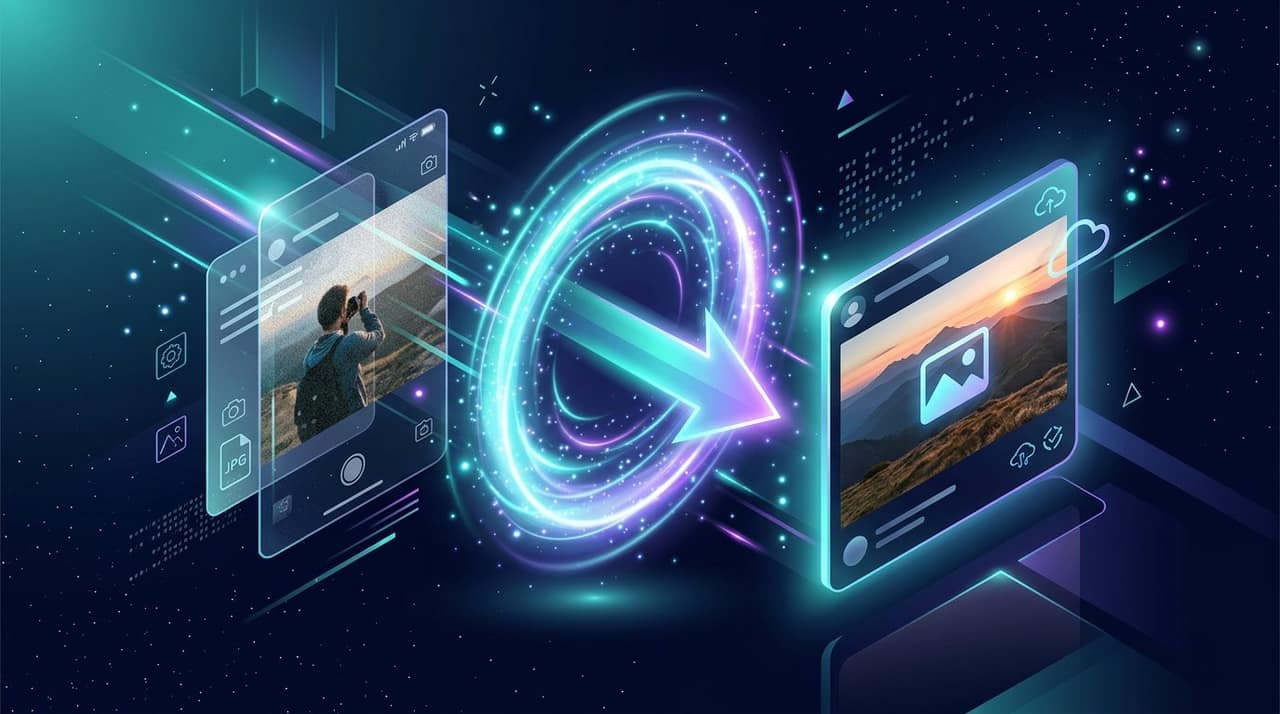
HEIC to JPG: Why iPhone Photos Break Everywhere Else, and the Clean Fix
HEIC is smaller and better than JPEG — and a compatibility tax you pay at every form, portal and old PC. What the format really is, and how to convert without losing your master.
If you have ever tried to attach an iPhone photo to a Windows PC, an older Android phone, a government portal or a dated content-management system, you have met HEIC: the file arrives, nothing opens it, and the extension looks like a typo. This guide explains what HEIC is, why it exists, and the cleanest way to live with it.
What HEIC actually is
HEIC is Apple's name for images stored in the HEIF container using HEVC compression — the same video codec family that makes modern streaming efficient. Apple adopted it as the default camera format in 2017 because it stores a photo at roughly half the size of an equivalent JPEG while keeping more detail in shadows and gradients.
That efficiency is real and worthwhile. The problem is purely one of reach: HEVC decoding requires licensed decoders, and a great deal of the world's software — particularly older Windows builds, many web upload forms, most print shops and a long tail of business systems — simply never gained support.
The three situations, and the right move in each
- 1Sharing a handful of photos with people or systems you do not control: convert to JPG. It is the one image format every device on earth can open.
- 2Archiving your own library: keep the HEIC. It is smaller and better; the compatibility tax only matters when someone else has to open the file.
- 3Uploading to a form that rejects HEIC: convert first, and keep the original. Do not let the portal's limitation delete your master copy.
Why converting in the browser is the pleasant option
The traditional fixes all have friction: installing codec packs on Windows, emailing the photo to yourself from a different device, or uploading it to a conversion website. Browser-based conversion removes all three — the HEIC is decoded locally and re-encoded as JPG without the file leaving your machine, which also means there is no size limit imposed by someone else's server and no queue to wait in.
It also handles the bulk case gracefully. A holiday produces hundreds of HEIC files; dragging the whole folder through a local converter beats doing them one at a time anywhere else.
Stopping the problem at the source
If compatibility is a constant battle for you, iOS lets you change the trade-off permanently: Settings → Camera → Formats → 'Most Compatible' makes the camera write JPEG directly. You give up roughly half the storage efficiency and gain universal openability. For people whose photos mostly end up in forms, portals and shared drives, that is often the correct choice.
There is also a middle path: keep HEIC on the phone and let the device convert on export. iOS can send JPEG over some sharing paths automatically. It is convenient but inconsistent — which is exactly why having a reliable local converter matters.
Edge cases worth knowing
- Live Photos arrive as a HEIC plus a small video; converting gives you the still only.
- HEIC can store bursts and multiple frames in one file; a converter takes the primary frame.
- Some HEIC files carry wide-colour (Display P3) data. Converting to JPEG maps it to sRGB, which is what almost every destination expects.
- Filenames keep the .heic extension after some transfers, which confuses software that sniffs extensions rather than content. Renaming the converted file to .jpg is harmless and often helpful.
Drop iPhone photos in, get universal JPGs out — decoded and converted on your own device, in bulk, with no upload.
Open the HEIC to JPG converter →Bulk conversion without surprises
Converting one photo is trivial; converting a holiday is a workflow, and workflows fail in predictable ways. A few habits keep a four-hundred-photo batch boring:
- Convert into a separate folder rather than in place, so originals and derivatives never get confused — and never overwrite a master.
- Keep the same filenames. Renaming during conversion breaks your own memory of which JPG came from which HEIC.
- Check one converted file at 100% before trusting the batch: orientation, colour and edge quality are all visible in the first image.
- If the batch is huge, do it in chunks. Browser memory is the only ceiling, and a chunked run cannot lose you an hour to one failed tab.
And keep the HEICs. Storage is cheap, compatibility demands change, and the day a new destination wants the original quality is the day you will be glad the master still exists.
Questions people ask
Is HEIC better quality than JPG?
At equal file size, yes — noticeably so in gradients and shadow detail. At equal quality, HEIC is roughly half the size. The disadvantage is entirely about compatibility, not quality.
Will converting lose my photo's metadata?
Orientation and basic EXIF usually survive a good conversion; some niche tags do not. If metadata matters to you, check the converted file before deleting the original.
Can Android open HEIC?
Recent Android versions generally can; older ones cannot. Since you rarely control the receiver's version, converting before sharing remains the safe move.
Why does my HEIC look rotated after conversion?
Phone photos store orientation as metadata rather than baking it into the pixels. A correct converter applies that rotation; if yours does not, rotate once after conversion and keep the result.
Written by the Tools Stars team
We build and maintain every tool on this site, and we test them on real files before we write about them — the numbers in our guides come from those tests, not from other people's articles. If a number here changes, we re-measure and update the page. More about how we work.